
Quick Start
Get your first OpenLogos project up and running — from install to your first AI-generated requirements document.
Time required: ~10 minutes
Prerequisites
Section titled “Prerequisites”- Node.js >= 18
- An AI coding tool — one of the following:
- Claude Code (terminal-based)
- OpenCode (terminal-based)
- Codex CLI (terminal-based)
- Cursor (IDE with built-in AI)
- ZCode, Qoder CLI, or WorkBuddy (installed as a project plugin)
Step 1: Install
Section titled “Step 1: Install”npm install -g @miniidealab/openlogosVerify the installation — this guide is written for 0.16.0:
openlogos --versionStep 2: Initialize a project
Section titled “Step 2: Initialize a project”Run the init command — it will ask you to choose a language and AI tool:
Options 7–9 select ZCode, Qoder, and WorkBuddy. Choose All when you want one project to deploy every supported target together (Claude Code, OpenCode, Codex, Cursor, ZCode, Qoder, WorkBuddy). The output below is abbreviated; extra lines (for example ignore suggestions for a detected tech stack, or a verify.pre_run_command reminder) depend on your directory.
To skip the prompts (for example in scripts or CI), pass both flags:
openlogos init my-project --locale en --ai-tool cursor--ai-tool accepts claude-code, opencode, codex, cursor, zcode, qoder, workbuddy, other, or all. In non-interactive mode --locale is required.
openlogos init my-project
Choose language / 选择语言:  1. English (default)  2. 中文
Your choice [1/2] (default: 1): 1
Choose AI coding tool / 选择 AI 编码工具:  1. Claude Code (default)  2. OpenCode  3. Codex  4. Cursor  5. Other  6. All (deploy for all tools)
  7. ZCode  8. Qoder  9. WorkBuddy
Your choice [1/2/3/4/5/6] (default: 1): 1
Creating OpenLogos project structure for "my-project"...
  ✓ logos/resources/prd/1-product-requirements/  ✓ logos/resources/prd/2-product-design/1-feature-specs/  ✓ logos/resources/prd/2-product-design/2-page-design/  ✓ logos/resources/prd/3-technical-plan/1-architecture/  ✓ logos/resources/prd/3-technical-plan/2-scenario-implementation/  ✓ logos/resources/api/  ✓ logos/resources/database/  ✓ logos/resources/test/  ✓ logos/resources/scenario/  ✓ logos/resources/verify/  ✓ logos/changes/  ✓ logos/changes/archive/  ✓ logos/logos.config.json  ✓ logos/logos-project.yaml  ✓ AGENTS.md  ✓ CLAUDE.md  ✓ 17 skills deployed to logos/skills/  ✓ Claude Code plugin deployed: 10 commands, 1 agents → .claude/  ✓ 24 specs deployed to logos/spec/
Project initialized. Next steps:  1. Review logos/logos.config.json to verify project settings  2. Start with Phase 1: tell AI "Help me write requirements"  3. Run `openlogos status` to check progress at any time
init writes the Claude Code commands, the change-reviewer agent, and the hooks (SessionStart context, PreToolUse write guard, post-execution checks) into the project’s .claude/ directly — no separate plugin install is needed.
openlogos init my-project
Choose language / 选择语言:  1. English (default)  2. 中文
Your choice [1/2] (default: 1): 1
Choose AI coding tool / 选择 AI 编码工具:  1. Claude Code (default)  2. OpenCode  3. Codex  4. Cursor  5. Other  6. All (deploy for all tools)
  7. ZCode  8. Qoder  9. WorkBuddy
Your choice [1/2/3/4/5/6] (default: 1): 2
Creating OpenLogos project structure for "my-project"...
  ✓ logos/resources/prd/1-product-requirements/  ✓ logos/resources/prd/2-product-design/1-feature-specs/  ✓ logos/resources/prd/2-product-design/2-page-design/  ✓ logos/resources/prd/3-technical-plan/1-architecture/  ✓ logos/resources/prd/3-technical-plan/2-scenario-implementation/  ✓ logos/resources/api/  ✓ logos/resources/database/  ✓ logos/resources/test/  ✓ logos/resources/scenario/  ✓ logos/resources/verify/  ✓ logos/changes/  ✓ logos/changes/archive/  ✓ logos/logos.config.json  ✓ logos/logos-project.yaml  ✓ AGENTS.md  ✓ CLAUDE.md  ✓ 17 skills deployed to logos/skills/  ✓ OpenCode plugin deployed to .opencode/plugins/openlogos.js + opencode.json  ✓ opencode.json created with recommended permission defaults  ✓ OpenCode slash commands deployed to .opencode/commands/ (10 files)  ✓ 24 specs deployed to logos/spec/
Project initialized. Next steps:  1. Review logos/logos.config.json to verify project settings  2. Start with Phase 1: tell AI "Help me write requirements"  3. Run `openlogos status` to check progress at any time
openlogos init my-project
Choose language / 选择语言: 1. English (default) 2. 中文
Your choice [1/2] (default: 1): 1
Choose AI coding tool / 选择 AI 编码工具: 1. Claude Code (default) 2. OpenCode 3. Codex 4. Cursor 5. Other 6. All (deploy for all tools)
7. ZCode 8. Qoder 9. WorkBuddy
Your choice [1/2/3/4/5/6] (default: 1): 4
Creating OpenLogos project structure for "my-project"...
✓ logos/resources/prd/1-product-requirements/ ✓ logos/resources/prd/2-product-design/1-feature-specs/ ✓ logos/resources/prd/2-product-design/2-page-design/ ✓ logos/resources/prd/3-technical-plan/1-architecture/ ✓ logos/resources/prd/3-technical-plan/2-scenario-implementation/ ✓ logos/resources/api/ ✓ logos/resources/database/ ✓ logos/resources/test/ ✓ logos/resources/scenario/ ✓ logos/resources/verify/ ✓ logos/changes/ ✓ logos/changes/archive/ ✓ logos/logos.config.json ✓ logos/logos-project.yaml ✓ AGENTS.md ✓ CLAUDE.md ✓ Cursor assets installed: <N> skills + <N> commands + 1 subagent, hooks (sessionStart, beforeShellExecution, afterShellExecution, afterFileEdit); start a new Cursor session to load refreshed skills and hooks ℹ Guard strength on Cursor (IDE and cursor-agent CLI) is partial: shell commands get a light pre-check via beforeShellExecution (guard-scope changes need host approval) plus an afterShellExecution post-check; file edits are only reported after the fact via afterFileEdit and are never blocked beforehand. OpenLogos does not wire preToolUse, so Cursor is not equivalent to claude-code. ✓ 24 specs deployed to logos/spec/
Project initialized. Next steps: 1. Review logos/logos.config.json to verify project settings 2. Start with Phase 1: tell AI "Help me write requirements" 3. Run `openlogos status` to check progress at any timeIn the Cursor output, <N> stands for the number of Skills and command Skills actually deployed to .cursor/skills/. Choosing ZCode, Qoder, or WorkBuddy installs the OpenLogos plugin into .zcode/plugins/openlogos/, .qoder/plugins/openlogos/, or .workbuddy/plugins/openlogos/ respectively; start a new session in that tool afterwards so it loads the plugin snapshot.
Now enter the project and check its status:
cd my-projectopenlogos status📊 OpenLogos Project Status
──────────────────────────────────────────────────🔲 Phase 1 · Requirements (WHY)🔲 Phase 2 · Product Design (WHAT)🔲 Phase 3-0 · Architecture🔲 Phase 3-1 · Scenario Modeling🔲 Phase 3-2 · API Design🔲 Phase 3-2 · Database Design🔲 Phase 3-3 · Deployment Plan🔲 Phase 3-4a · Test Case Design (Unit + Scenario)🔲 Phase 3-4b · API Orchestration Tests🔲 Phase 3-5 · Code Implementation🔲 Phase 3-6 · Test Acceptance (verify)🔲 Phase 3-7 · Deployment Execution🔲 Phase 3-8 · Deployment Smoke Test──────────────────────────────────────────────────
💡 Suggested next step: Phase 1 · Requirements (WHY) → Tell AI: "Help me write requirements"Everything is empty — that’s expected. The methodology will guide you through each phase in order.
Step 3: Open in your AI tool
Section titled “Step 3: Open in your AI tool”Open the project in your chosen AI tool. Say something like “please help me have a look at this project” — the AI will automatically detect OpenLogos and show you the project status.
Navigate to the project in your terminal and start Claude Code:
cd my-projectclaudeClaude Code reads AGENTS.md on startup and automatically detects the OpenLogos project:
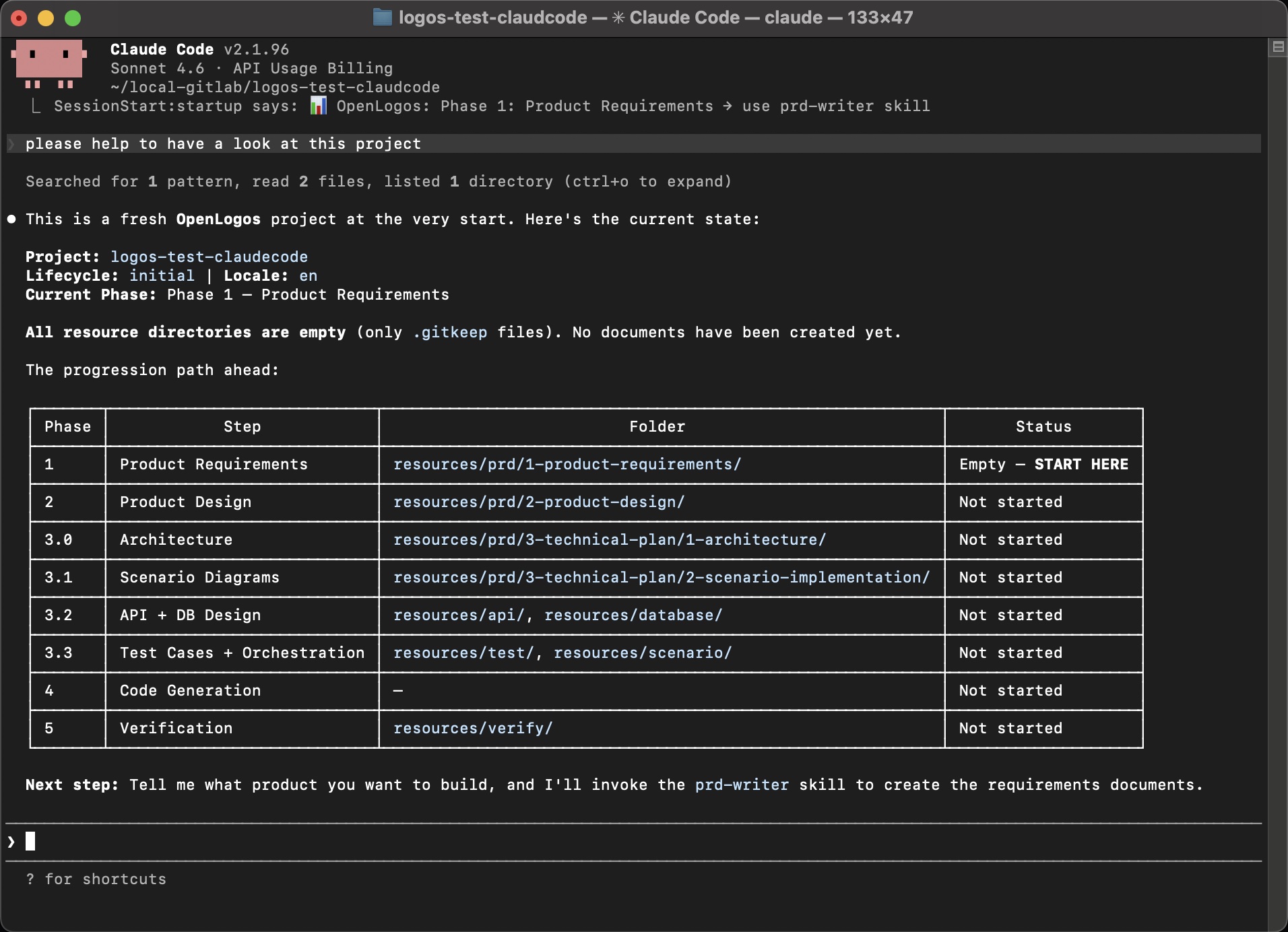
It shows the full progression path and identifies Phase 1 as the starting point with “Empty — START HERE”.
Navigate to the project and start OpenCode:
cd my-projectopencodeOpenCode reads the project configuration and displays a detailed overview:
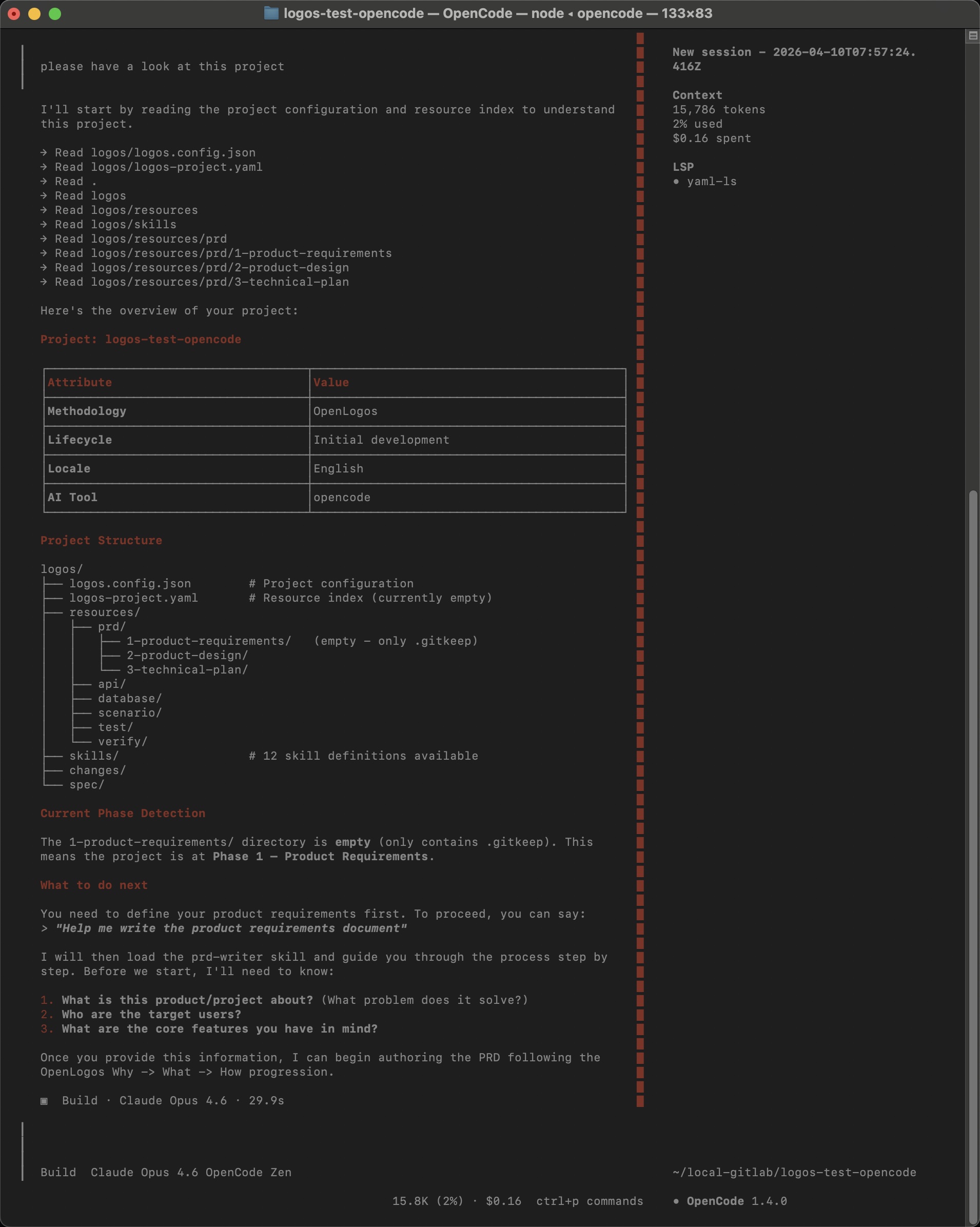
It shows the project structure, detects the current phase, and even tells you exactly what questions it needs answered to begin.
Open the my-project folder in Cursor (or run cursor-agent in it). OpenLogos Skills are loaded from .cursor/skills/ (explicit commands are available as /openlogos-<command>), the change-reviewer subagent from .cursor/agents/, and the hooks from .cursor/hooks.json — no manual configuration needed. If Cursor was already open, start a new session after init or sync.
On Cursor the write guard is partial-strength: shell commands get a light pre-check (beforeShellExecution) and a post-execution check (afterShellExecution); file edits are only reported afterwards (afterFileEdit). See PreToolUse Guard.
Ask the AI to review the project, and it will show you the full phase progression:
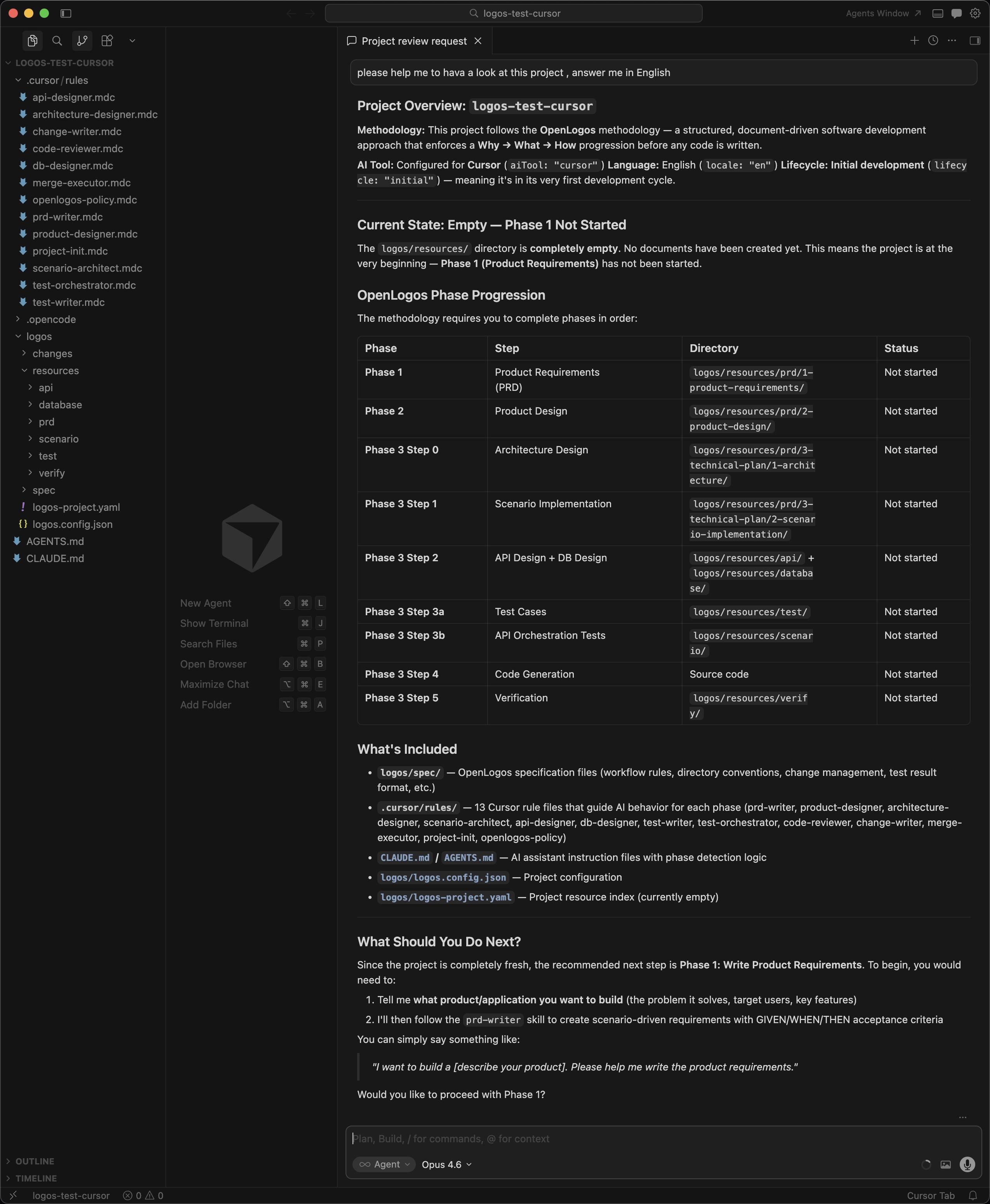
The AI detects all phases, shows which directories map to each step, and suggests starting with Phase 1.
Start a new session of the tool in the my-project directory. The OpenLogos plugin under .zcode/plugins/openlogos/, .qoder/plugins/openlogos/, or .workbuddy/plugins/openlogos/ provides the Skills, commands, and agents; its SessionStart hook injects the current phase, and its PreToolUse hook enforces the write guard. init also writes host-specific instructions into the OpenLogos managed block of the root AGENTS.md.
Ask the AI to review the project, and it will show the phase progression and suggest starting with Phase 1.
Step 4: Your first AI collaboration
Section titled “Step 4: Your first AI collaboration”This is the moment of truth. Tell the AI:
“Help me write the requirements document”
The AI loads the prd-writer Skill and asks you three questions:
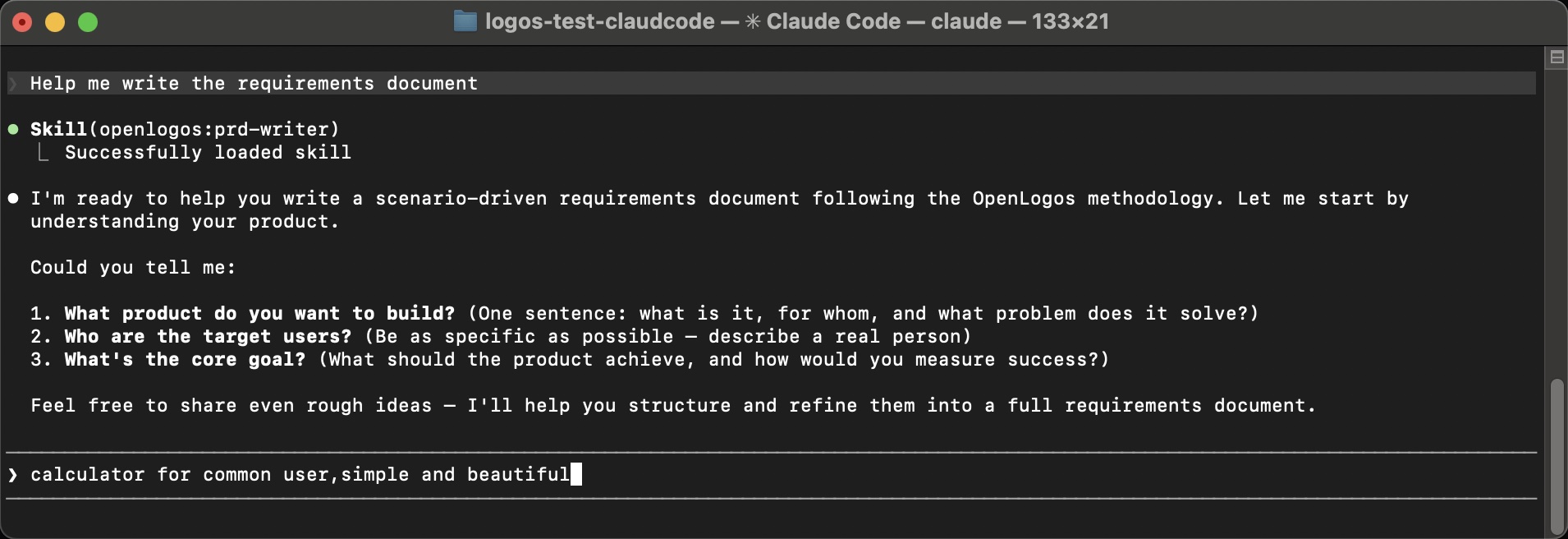
- What product do you want to build? (One sentence: what is it, for whom, and what problem does it solve?)
- Who are the target users? (Be as specific as possible — describe a real person)
- What’s the core goal? (What should the product achieve, and how would you measure success?)
Answer with even a rough idea — for example:
“calculator for common user, simple and beautiful”
The AI takes your brief input, asks a few follow-up clarifications, then produces a complete, structured requirements document:
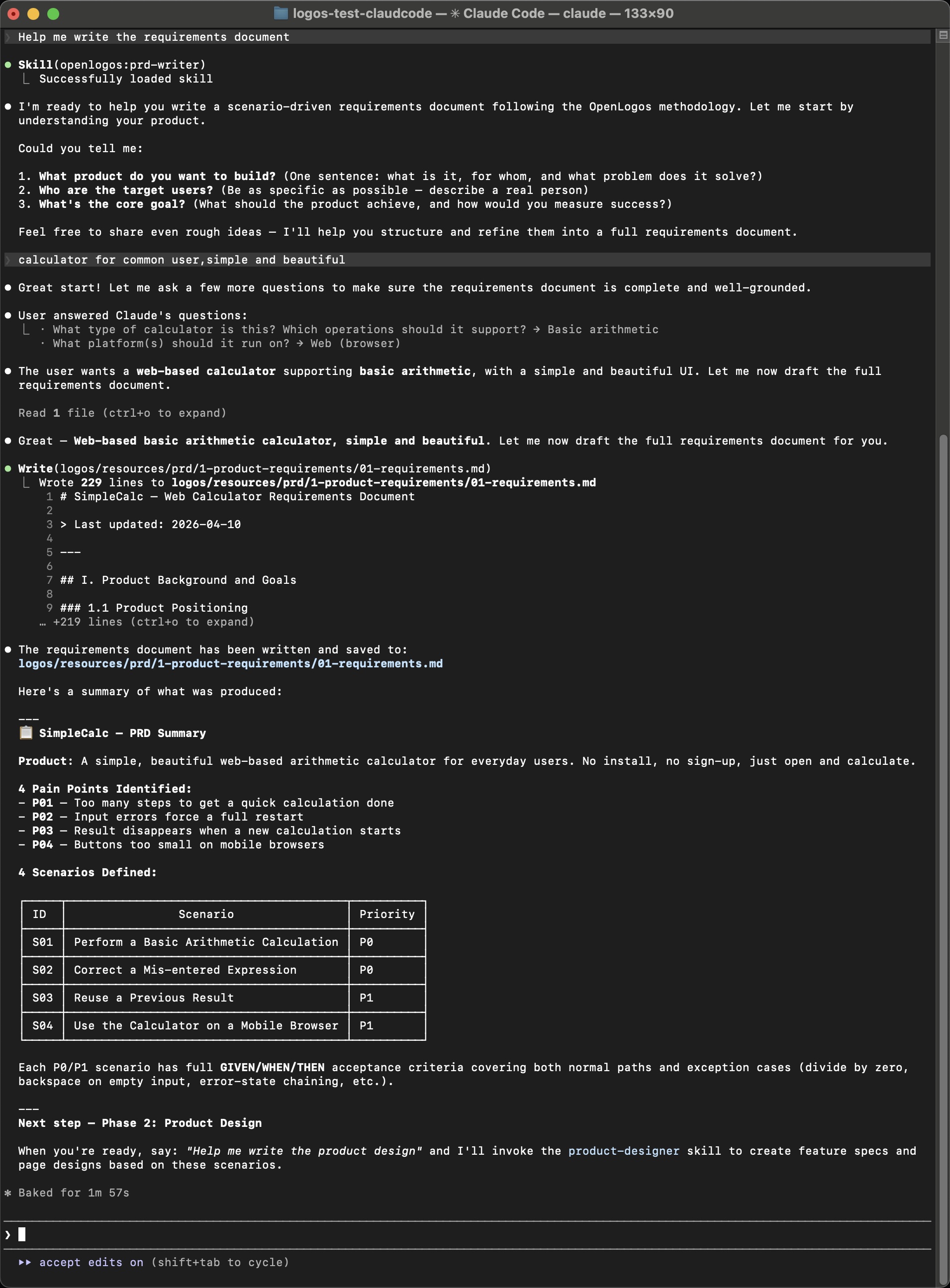
In about 2 minutes, it generates a 229-line requirements document with:
- Product positioning and core objectives
- Target user persona
- Pain point analysis (P01–P04)
- 4 scenarios (S01–S04) with priority levels
- Full GIVEN/WHEN/THEN acceptance criteria for each scenario
- Constraints, boundaries, and a “Won’t-Do” list
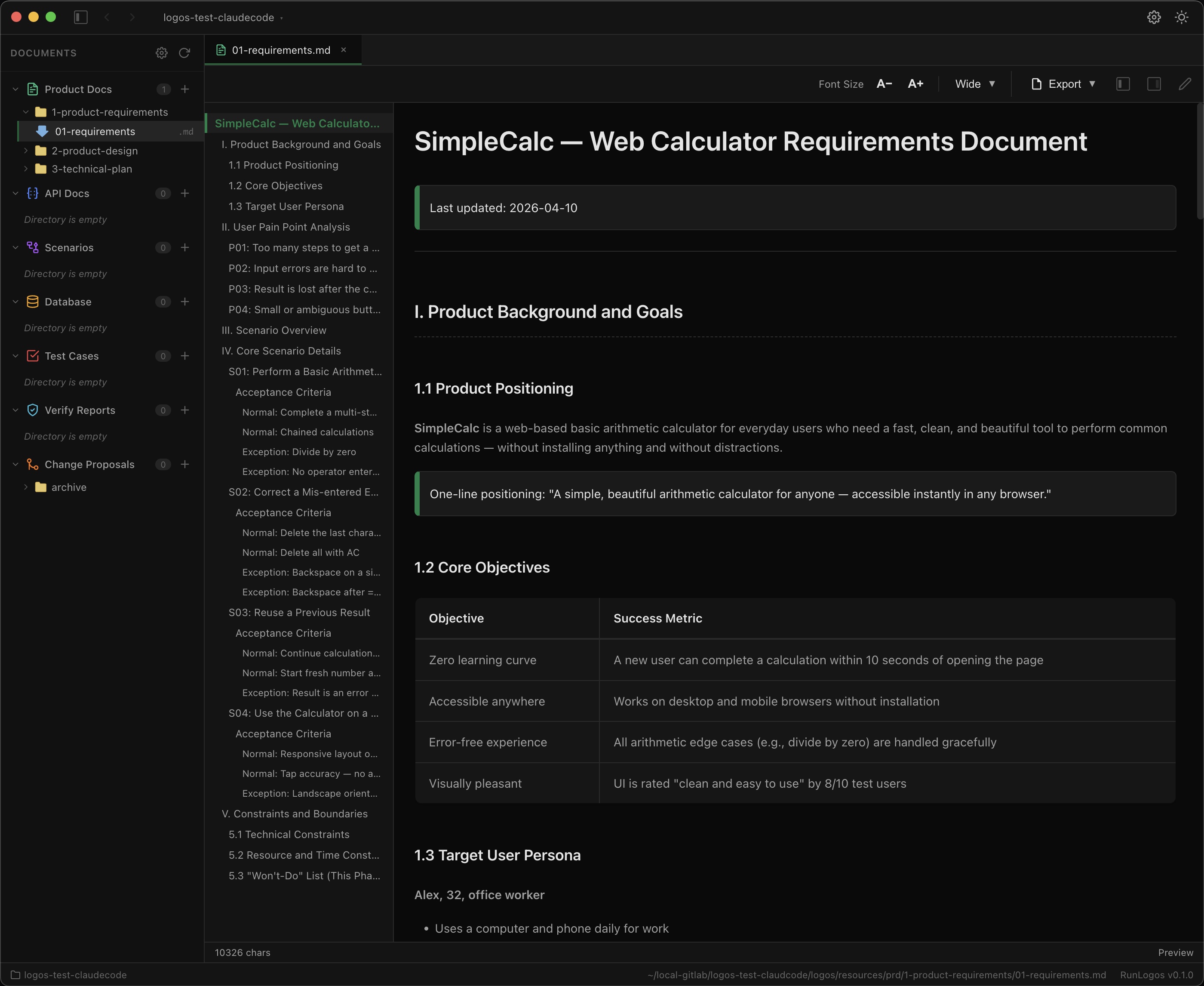
The document is saved to logos/resources/prd/1-product-requirements/01-requirements.md — and it’s immediately viewable:
Step 5: Check your progress
Section titled “Step 5: Check your progress”Now run the status command (or use the slash command in Claude Code):
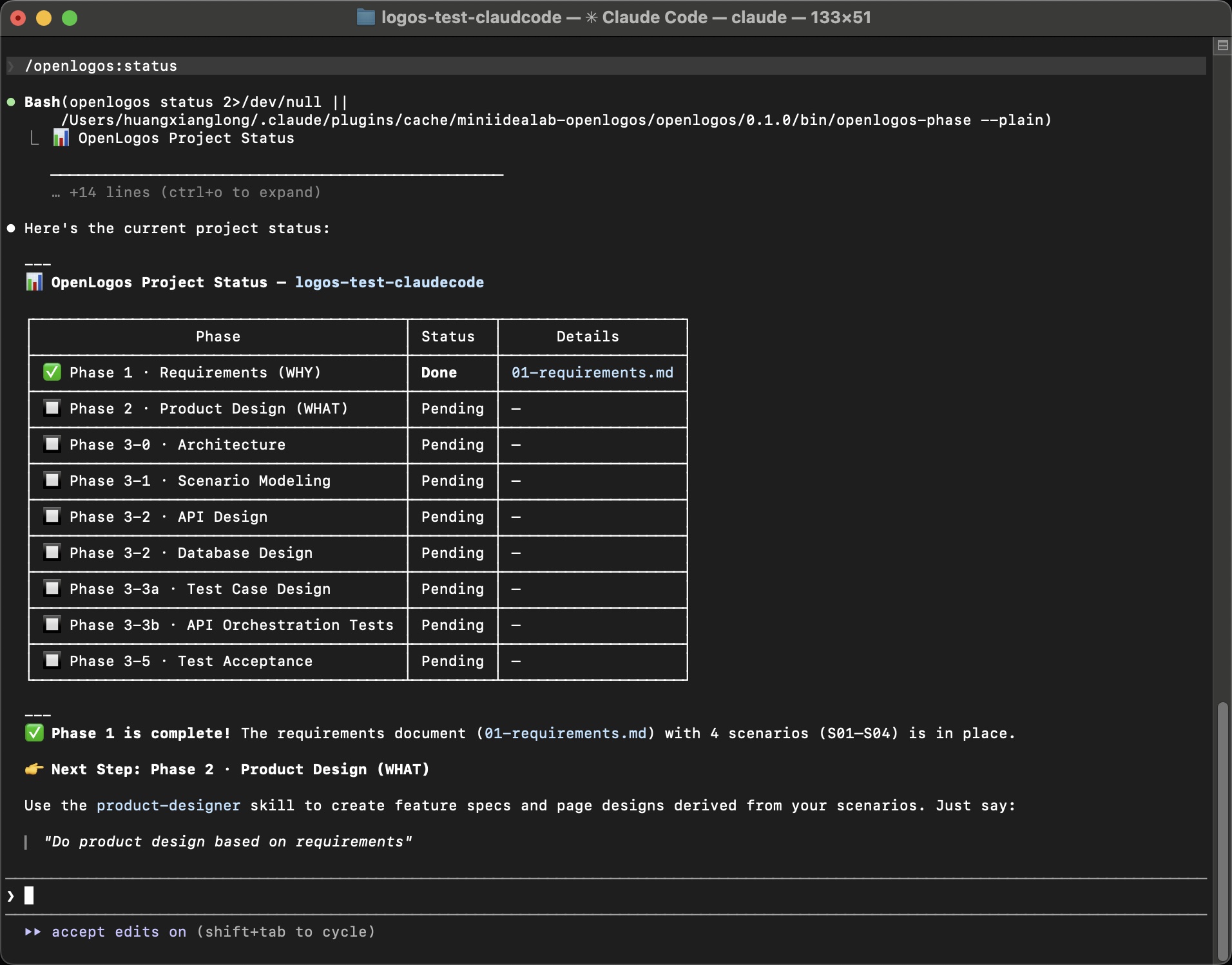
Phase 1 is marked as Done. The AI confirms:
- ✅ Requirements document (
01-requirements.md) with 4 scenarios (S01–S04) is in place - 👉 Next Step: Phase 2 · Product Design (WHAT) — just say “Do product design based on requirements”
You’ve completed your first full cycle of the OpenLogos methodology. Every subsequent phase works the same way: the AI reads the previous phase’s output, loads the appropriate Skill, and guides you through the next step.
What’s next?
Section titled “What’s next?”You now have a working OpenLogos project with a complete requirements document. Here’s where to go from here:
-
Continue building — Tell the AI “Help me create the product design” to move into Phase 2. Each phase builds on the previous one, all the way through to verified, tested code.
-
See real projects — Visit the Tour to see OpenLogos applied end-to-end on two real projects: FlowTask (Rust/Tauri) and Money-Log (Electron).
-
Understand the concepts — Read the Core Concepts to understand the WHY → WHAT → HOW model, scenario-driven development, and test-first methodology.
-
Explore the toolchain — Check the CLI Reference for every top-level command and the Skills Reference for all built-in AI Skills.